Sharing a document is the first step. The next is hearing what people think: which sentence is unclear, which claim needs a source, which paragraph can go. Until now, that feedback arrived in emails and chat messages, far from the words it was about.
You can now get comments right on your document.
The New Commenter Role
When you share a document, you can now give someone Commenter access. Commenters can read your document and leave comments on it, but they can’t change your writing.
- Add people: In the Share window, choose Commenter before you click Share.
- Who has access: Change anyone between Viewer and Commenter from their role menu. The change saves straight away.
- Access requests: People asking for access can now request Commenter, and you approve it the same way.
Anyone with the link stays view-only. To let someone comment, add them by email.
Comment on Any Text
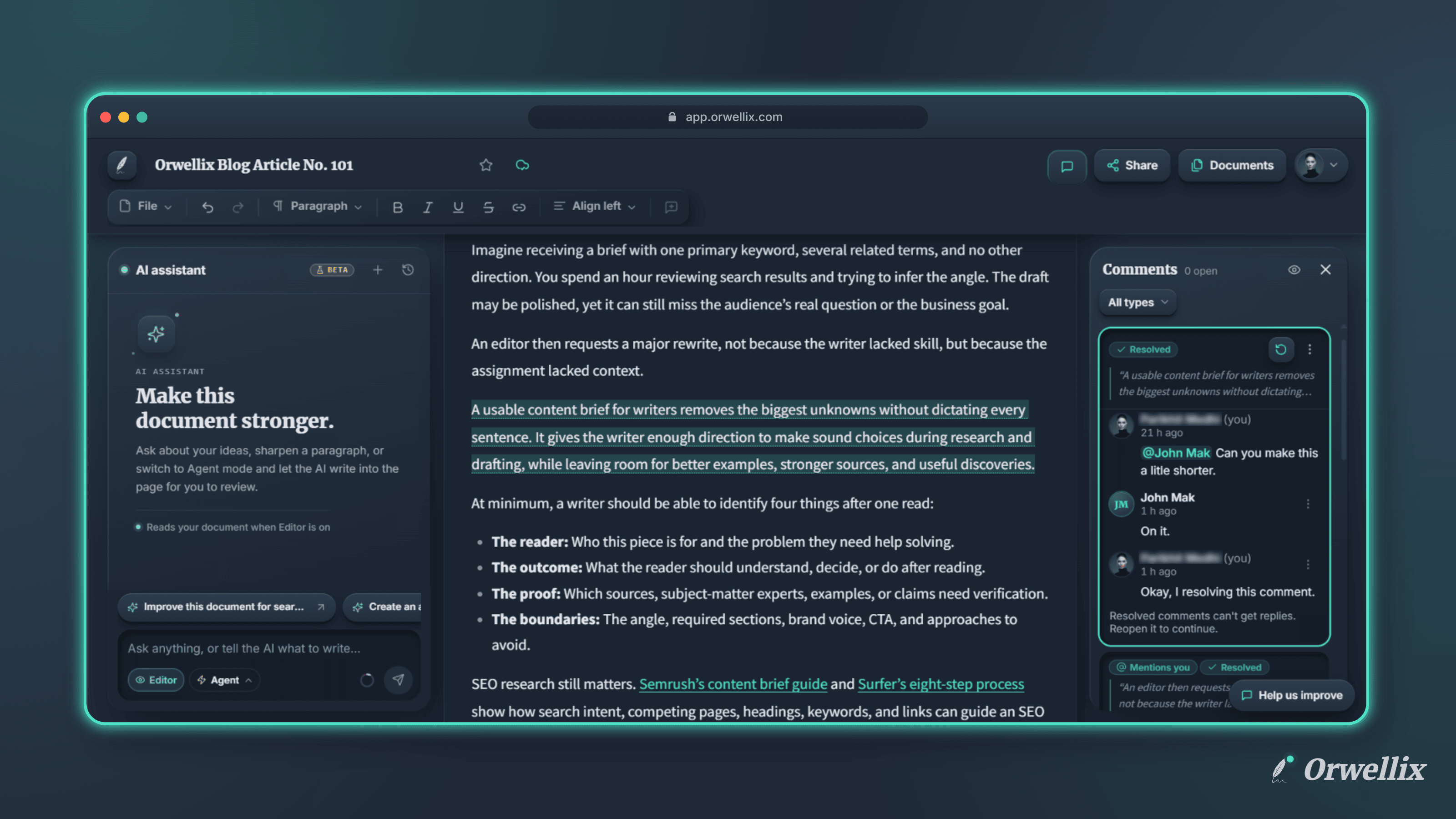
Select the words you want to talk about. When you finish selecting, a small comment button appears at the bottom-right corner of your selection. Click it, write your comment, and press Comment.
You can also click the comment button in the toolbar, or press Ctrl+Alt+M (Cmd+Option+M on Mac).
Type @ to mention someone who can see the comments. They get an email so they know you need them.
Commented words get a light highlight, and a round comment icon appears in the margin beside the line. Click the icon to open that comment.
The Comments Sidebar
Click Comments next to Share in the editor header. The number on the button shows how many comments are still open.
Each comment card shows the first comment and the latest reply, so you can follow a conversation at a glance. Click a card to open it. Orwellix scrolls to the commented words and marks them, and you can:
- Reply to keep the conversation going.
- Resolve the comment when it’s done. Resolved comments move out of your way, and you can reopen them any time.
- Edit or Delete your own comments from the ⋯ menu.
Use the filter at the top to see All types, only Open comments, or only Resolved ones. And if the highlights distract you while you write, click the eye icon to hide them.
Comments Stay on Your Words
You can keep editing while people comment. Each comment follows its words as you write. If you change part of the commented text, the highlight stays on the words that remain. If you delete all of it, the comment stays in the sidebar, marked Original content deleted.
Live, and Never Missed
New comments, replies and resolves appear for everyone as they happen, with no need to reload the page. Comments you haven’t seen yet are marked New, and your documents list shows how many new comments each document has.
Orwellix also emails you when:
- Someone comments on your document.
- Someone @mentions you.
- Someone resolves a comment you started.
Activity on the same document is grouped into one email every few minutes, and anything you’ve already read in Orwellix is left out. Click a comment in the email to open it in the sidebar.
Who Can Do What
- You (the owner) can comment, reply, resolve any comment, and delete any comment.
- Commenters can comment, reply, edit and delete their own comments, and resolve comments they started.
- Viewers and visitors with the link don’t see comments.
Comments are kept separate from your writing. They aren’t included when you download, print, or make a copy of a document.
Available on Every Plan
Comments work on every Orwellix plan, including Free. Open a document, click Share, and add someone as a Commenter to try it.