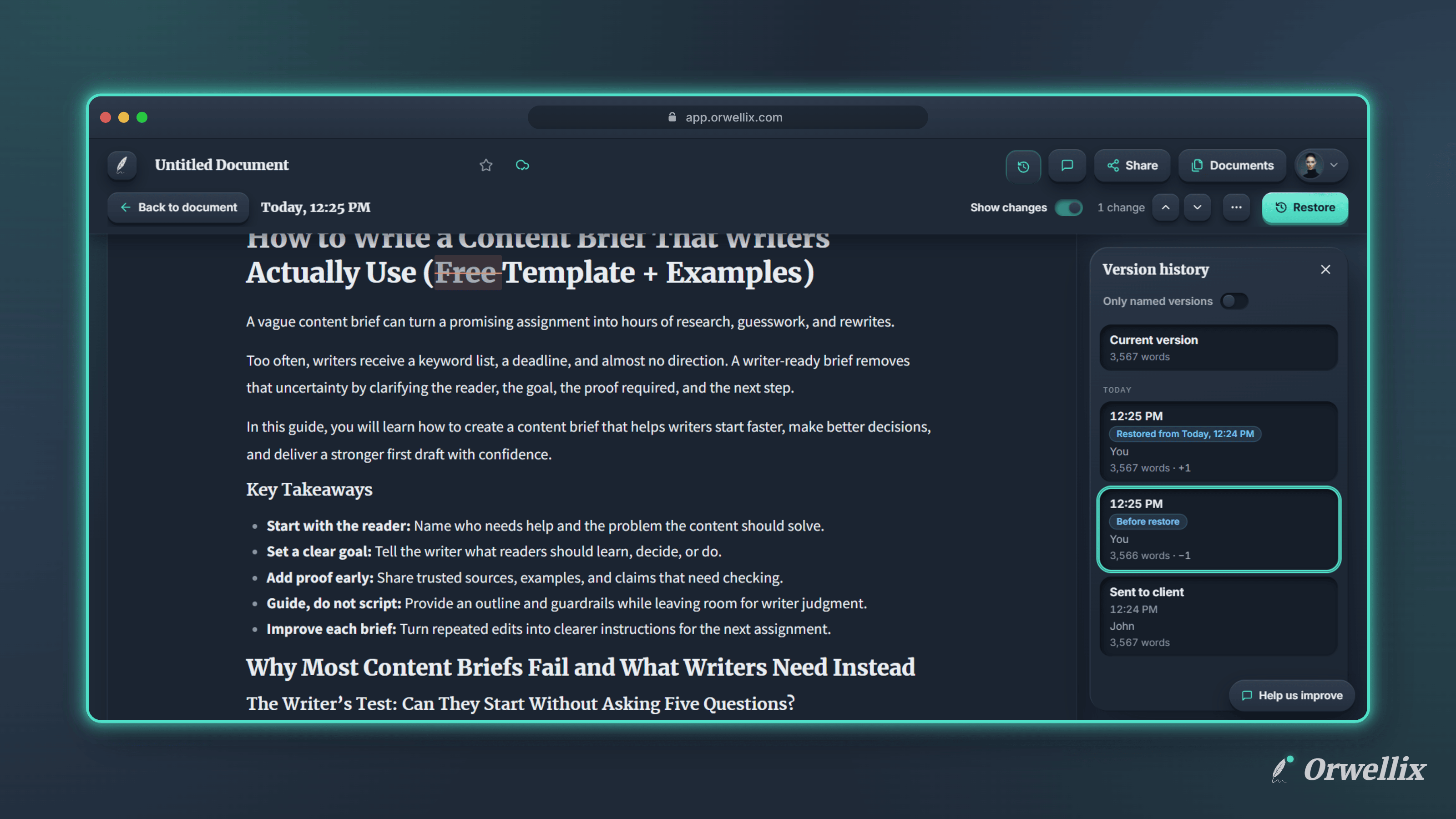
Writing rarely goes in a straight line. You cut a paragraph and miss it the next day. You accept an AI rewrite and realise the old wording was better. A co-author tidies up a section you weren’t finished with. Until now, once a change was saved, the earlier text was gone.
Every Orwellix document now has version history.
Versions Are Saved for You
You don’t need to do anything. Orwellix saves a version of your document:
- After a pause: when nobody has edited the document for 5 minutes.
- When you close it: as soon as the last person closes the document.
- Before big changes: just before you accept AI edits, import a file, or restore an older version, and before writing you did offline is added back.
A version is only saved when the text has changed, so your history never fills up with copies of the same text. Each version shows when it was saved, who edited in it, and its word count.
Open Version History
Click the clock button next to Comments at the top of the editor. Hover over it first to see when the document was last edited, and by whom, such as Last edit was made 5 minutes ago by Riya.
You can also open it from File › Version history, or press Ctrl+Alt+H (Cmd+Option+H on Mac). Press Esc or click Back to document to return to your writing.
The version list shows Current version at the top, then every saved version grouped by day. Versions saved before a big change have a label, such as Before AI edits or Before import, so the one you’re looking for is easy to find. Click any version to read it.
See What Changed
Show changes is on when you open a version. It compares that version with the one saved before it:
- Added words are highlighted and underlined.
- Removed words are put back in place and struck through.
The bar at the top counts the changes, such as 3 of 12 changes. Use the up and down arrows to jump from one change to the next. Changes to formatting alone, such as making a word bold, aren’t marked.
Restore a Version
Found the version you want? Click Restore, then confirm.
- Nothing is lost: Your current text is saved as a version first, so you can always come back to it. Newer versions stay in the list too.
- Only what changed is replaced: Paragraphs that are the same in both versions are left as they are.
- Changed your mind? Press Ctrl+Z right after restoring to undo it.
- Comments come back: If a comment’s words were deleted and the version you restore has them again, the comment returns to its words.
Anyone else with the document open sees a short notice, such as Riya restored a version from Yesterday, 3:42 PM, so the sudden change makes sense.
Name Important Versions
Some moments matter more than others: the draft you sent to a client, the version you submitted, the one before a big rewrite. Give them a name.
- Name the text as it is now: Choose File › Version history › Name current version.
- Name a saved version: Open it, click the ⋯ button, and choose Name this version.
- Find them fast: Turn on Only named versions to see just your milestones.
Named versions are kept for as long as the document exists, up to 50 per document. You can rename them or remove the name any time.
More You Can Do With an Older Version
From the ⋯ button on any version:
- Make a copy: Start a new document from that version, without changing this one.
- Download: Save that version as Word, PDF, plain text, Markdown, web page, or e-book.
- Print: Print that version without the change highlights.
To bring back just one paragraph, select it in the older version, copy it, and paste it into your document.
Who Can Use It
The owner and Editors can see version history, restore versions, and name them. Editors can rename or remove the names they gave; the owner can change any name.
Commenters, Viewers, and people with the link don’t see version history, so text you deliberately removed stays removed for them.
Because every import now saves the text first, Editors can also replace the whole document on import. Before, only the owner could.
On Phones and Tablets
Version history works on smaller screens too. The version list slides in from the side, and on phones it opens first so you can pick a version straight away. On phones, open version history from the File menu.
How Long History Is Kept
| Plan | Versions kept for |
|---|---|
| Free | 7 days |
| Pro | 30 days |
| Premium | 60 days |
| Lifetime | 90 days |
Named versions are kept on every plan, for as long as the document exists. For a shared document, the owner’s plan decides how long history is kept.
Version history starts today. For documents you already have, the first version is saved the next time you edit them, holding the text as it was before that edit. Open a document, make a change, and click the clock button to see it.