A link that looks right can still point to the wrong page. Checking it usually means opening a new tab, waiting for the page to load, and finding your way back to the draft.
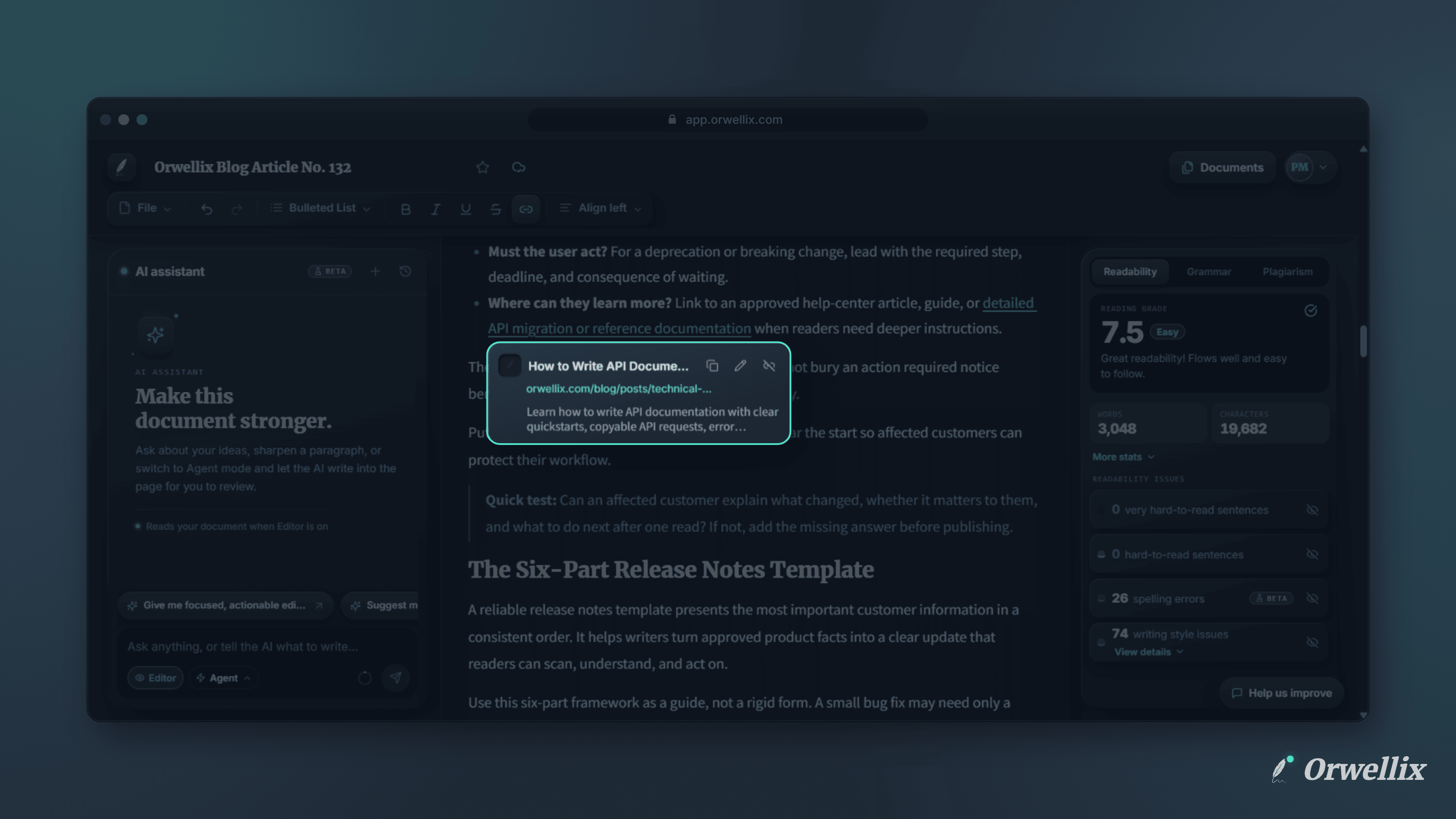
The Orwellix editor now shows a preview card for every link in your document.
See Where a Link Goes
Click a link, or move your cursor into it, and a card appears next to it with:
- The site’s icon
- The page title, which opens the page in a new tab when you click it
- The web address
- The page description, when the site provides one
You can tell at a glance whether the link points to the article you meant, without leaving your document.
Copy, Edit, or Remove
The preview card has three buttons:
- Copy: Copies the link to your clipboard.
- Edit: Changes the link text or the web address.
- Remove: Removes the link and leaves the text in place.
A Better Way to Add Links
Select some text and click the link button on the toolbar, or press Ctrl+K (⌘K on a Mac). Paste or type the address and press Enter to apply it.
If you haven’t selected any text, the link box asks for both the Text to show and the address, so you can add a new link in one step.
You don’t need to type https://. Orwellix adds it for you, and it lets you know if an address doesn’t look valid.
Placed Where You Can See It
Both the preview card and the link box open above or below the link, depending on which side has more room, so they never cover the line you’re working on.
Try It Now
Open a document with a link and click it to see the preview, or select some text and press Ctrl+K to add one.