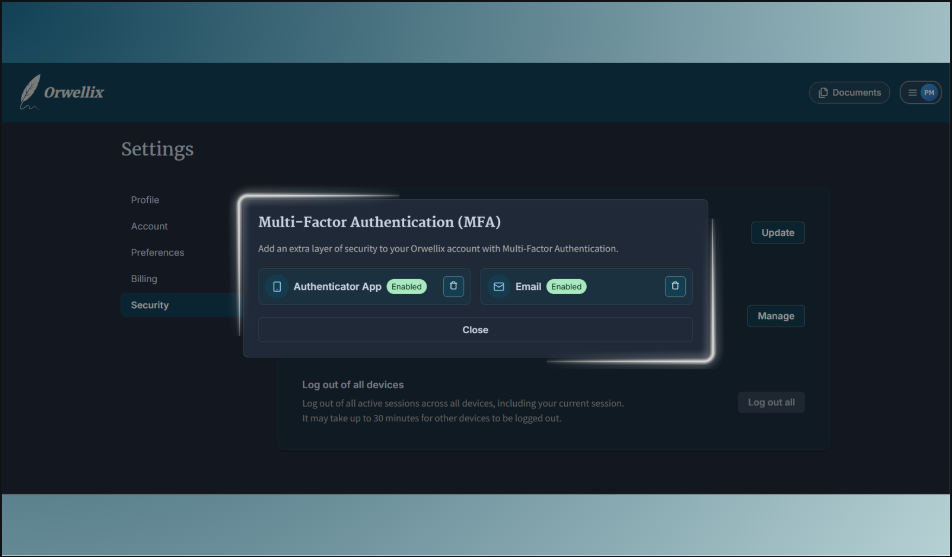
We’re thrilled to introduce Multi-Factor Authentication (MFA)—a powerful security feature that adds an extra layer of protection to your Orwellix account, keeping your documents, AI conversations, and creative work safe from unauthorized access.
What’s New
-
Dual Verification Methods: Choose between Email Verification for convenience or Authenticator App for enhanced security or enable both for maximum protection and flexibility.
-
Seamless Setup Process: Enable MFA in seconds directly from your Security settings. Simple step-by-step guidance walks you through setup, with instant QR code generation for authenticator apps.
-
Flexible Authentication: Switch between verification methods during login workflow on your situation. Lost your phone? Use email. Away from email? Use your authenticator app.
-
Smart Password Protection: All verification method changes require password confirmation, ensuring only you can modify your security settings even if someone gains temporary access to your account.
-
Instant Email Codes: Receive verification codes instantly via email with automatic 5 Minutes expiration for security. Built-in resend functionality with cooldown protection prevents abuse.
-
Industry-Standard Authenticator Support: Works seamlessly with popular authenticator apps like Google Authenticator, Microsoft Authenticator, Authy, 1Password, and any TOTP-compatible app.
-
Manual Key Entry Option: Can’t scan QR codes? Use manual key entry with one-click copy for quick setup on any device or authenticator app.
How to Use It
Setting Up Email Verification
- Navigate to Settings → Security.
- Click Manage in the Multi-Factor Authentication section.
- Select Enable under Email.
- Enter your account password to confirm.
- Done! You’ll receive verification codes via email during login.
Setting Up Authenticator App
- Go to Settings → Security → Manage MFA.
- Click Set Up under Authenticator App.
- Scan the QR code with your authenticator app (Google Authenticator, Authy, etc.).
- Can’t scan? Click “Can’t scan the QR code?” to reveal manual key entry with copy button.
- Enter the 6-digit code from your app.
- Confirm with your account password.
- Your authenticator is now active!
Logging In With MFA
- Enter your email and password as usual.
- You’ll be redirected to the MFA Verification page.
- Choose your preferred verification method from the dropdown.
- For Email: Click “Send Code” → Check your inbox → Enter the 6-digit code.
- For Authenticator App: Open your authenticator app → Enter the current 6-digit code.
- Access granted!
Managing Your MFA Methods
- Visit Settings → Security anytime.
- Click Manage to view active methods.
- Add or Remove verification methods as needed.
- All changes require password confirmation for your security.
Real-World Protection Scenarios
Scenario 1: Compromised Password
- Someone discovers your password through a data breach.
- They try to login but can’t, they need your phone or email access too.
- Result: Your account stays safe.
Scenario 2: Public Wi-Fi Login
- You’re working from a coffee shop on public Wi-Fi.
- Even if network traffic is intercepted, MFA prevents unauthorized access.
- Result: Peace of mind when working remotely or traveling.
Scenario 3: Lost Authenticator Device
- Your phone with the authenticator app is lost or broken.
- Switch to email verification method during login.
- Result: You never lose access to your account.
Scenario 4: Shared Computer
- You accidentally leave your account logged in on a public computer.
- Even with session access, MFA protects future logins.
- Result: Quick recovery by changing password and maintaining MFA.
Key Features in Detail
-
Privacy-First Design: Verification codes expire automatically, never stored in plaintext, and all MFA secrets are encrypted at rest.
-
Method Flexibility: Enable email for convenience, authenticator for maximum security, or both for redundancy; your choice.
-
Smart Cooldown Protection: Resend limits and cooldown timers prevent spam and abuse while keeping your inbox clean.
-
Instant Feedback: Real-time status updates, clear error messages, and auto-focus inputs make verification fast and frustration-free.
-
Cross-Device Support: Set up authenticator apps on multiple devices for backup access and convenience.
-
Recovery Support: Lost access to your MFA method? Our support team can help verify your identity and restore account access.
Why Enable MFA?
Your Orwellix account contains valuable content — documents, research, AI conversations, and creative work that represent hours of effort. MFA ensures that even if your password is compromised, your account remains secure.
Benefits:
- ✅ Peace of Mind: Sleep better knowing your work is protected by industry-standard security.
- ✅ Flexibility: Choose the verification method that fits your workflow.
- ✅ No Lock-Outs: Multiple methods and support recovery mean you’ll never lose access.
- ✅ Professional Security: The same protection used by banks, tech companies, and government agencies.
- ✅ 2-Minute Setup: Quick, painless setup with clear instructions every step of the way.
This powerful security feature transforms Orwellix into a fortress for your creative work. Whether you’re a casual user or manage sensitive documents, MFA adapts to your security needs while maintaining the seamless experience you love.
Enable Multi-Factor Authentication today and take control of your account security!