Some drafts are easier to judge on paper. You read more slowly, you catch the sentence that doesn’t land, and you can mark it up with a pen.
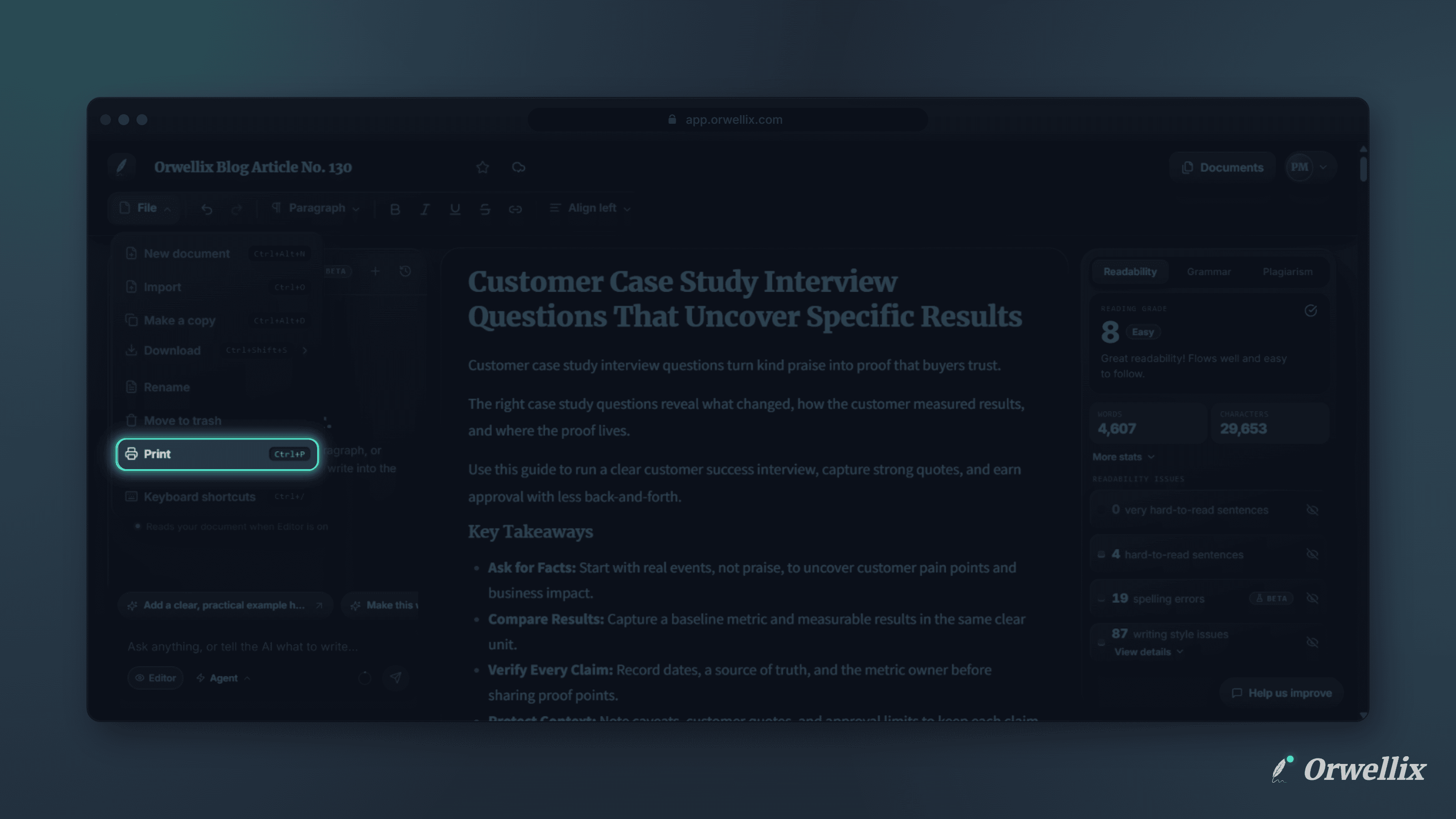
You can now print any document directly from the Orwellix editor.
How to Print
Open File on the editor toolbar and choose Print, or press Ctrl+P (⌘P on a Mac). Your browser’s print dialog opens, where you can pick a printer or choose Save as PDF.
Only Your Writing Goes to the Page
Orwellix prepares a clean, print-ready version of the document before the print dialog opens:
- No app interface: The toolbar, the side panels, the AI assistant, menus, and buttons are all left out.
- No highlights: Readability and grammar markings are removed, so the page shows your writing, not your edits.
- Black text on white: The page prints in black on white even if you write in Dark mode.
- Formatting kept: Headings, lists, bold, italic, and links print as they appear. Quotes keep a light grey line on the left, and code blocks get a light grey box.
- Tidy margins: The browser’s date and web address are removed from the page edges, and the text has comfortable margins.
The document title isn’t printed. If you want a title on paper, add it as a heading at the top of the document.
Print Is on Every Plan
Printing works on every Orwellix plan, including Free. Open any document and press Ctrl+P to try it.